I’ve been using vim and the terminal for ~30 years, and am working now in a VSCode shop. I am probably the only holdout, using terminal tools (tmux, vim, cscope, ctags, perl, …). I am a keyboard guy, and am generally hopeless in a UI of any sort, and don’t find them particularly intuitive.
I keep trying to make the VSCode switch, but then get frustrated, as I want to do something that I can do trivially outside of the UI and I have no idea how to do it in the UI. I’ll then switch to terminal for something “quick”, and end up just staying there for the rest of the day.
I know that there are good reasons to use VSCode. In particular, the AI helper tools are near magical at filling in comments and even code. How the hell did it read my mind this time is often the feeling that I have when I am using it.
Here are some examples of things that I can do really easily outside of the VSCode environment:
- Switching tabs (open files in the UI) with just keystrokes. I do this in tmux with F7, F8 keymappings. I use tmux aliases to put names on all my shell sessions, so I can see at a glance what I am doing in any (example: I just type ‘tnd’ and my tmux window is then labelled with the last two components of my current directory.)
- Open a file. Clicking through a UI directory hierarchy is so slow. I have CDPATH set so that I can get right to my src or tests directory in the terminal.
- build the code. Typing ninja from my tmux “build” directory is so easy (and I have scripts that rerun cmake, clean and recreate the build directory).
- Run an ad-hoc filter on a selected range of lines in the code (either visually selected, or with a vim search expression, like “:,/^ }/!foo”. If I install the vim extension in VSCode to use comfortable key bindings, then even a search like that doesn’t work.
- I can’t search for /^ }/ (brace with two spaces of indentation), since the VSCode vim extension insists on ignoring multiple spaces in a search expression like that.
- Iterate quickly over compilation errors. In the terminal I just run ‘vim -q o’, assuming that I’ve run ‘ninja 2>&1 | tee o’
- Launch a debugger. I can put my breakpoints in a .gdbinit file (either ~/.gdbinit or a local directory one), and then just run. How to do the same in the UI is not obvious, and certainly not easy. I have done it, and when you can figure out how to do it, it’s definitely nice to have more than a peephole view of the code (especially since gdb’s TUI mode is flaky.)
It’s my goal to at least understand how to do some of these tasks in VSCode. I’m going to come back to this blog post and gradually fill it in with the tricks that I’ve figured out, assuming I do, so that I can accomplishing the goals above and more.
My environment
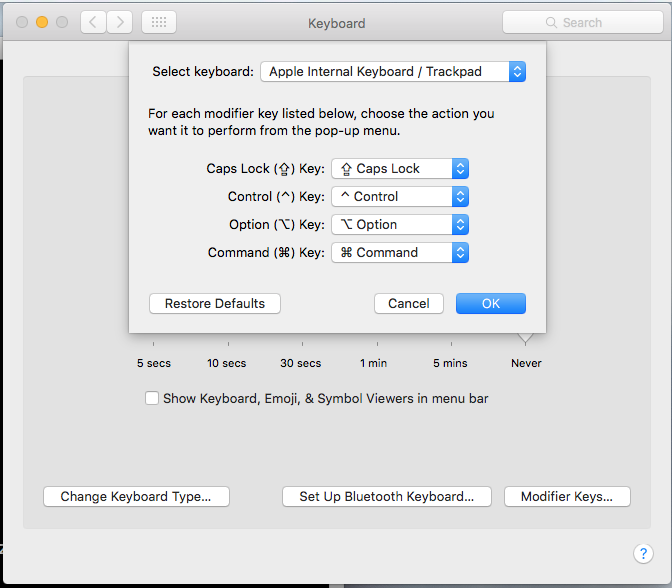
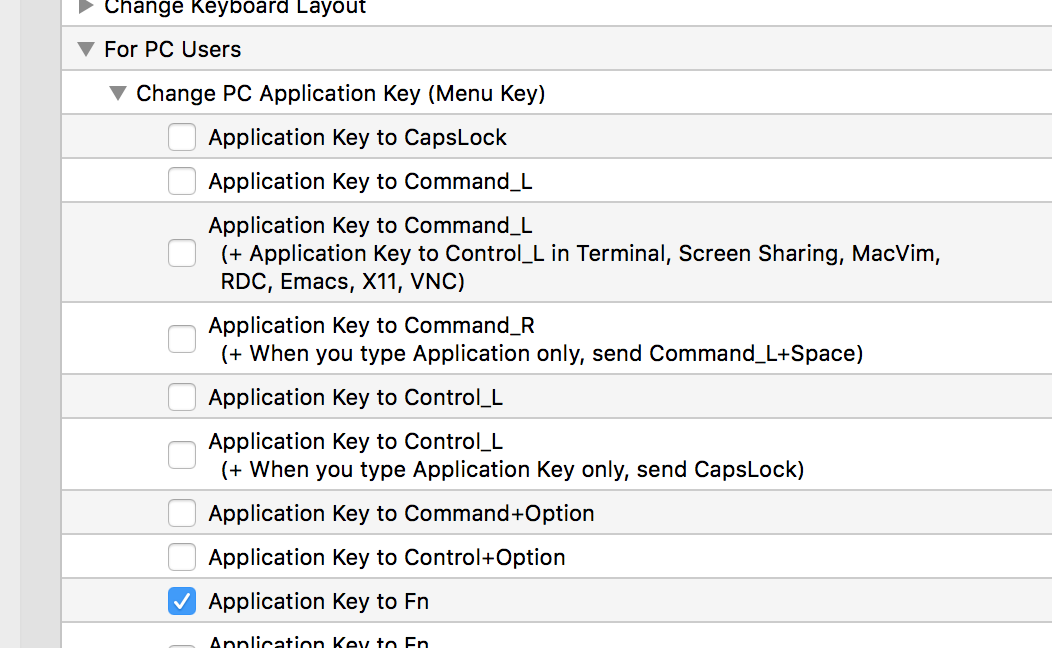
I am using a PC keyboard. It’s an ancient cheap logitech keyboard (I had two of these, both about 9 years old, both in the same sad but impressively worn state). Those keyboards have nice pressable keys, not like the mac laptop. The mac laptop keyboard is for well dressed people browsing the web in Starbucks, not for people in the trenches. I use the Karabiner app to map my Alt key to Command so that the effective “command” key is always in the same place. For that reason, some of these key mappings may not be the ones that anybody else would want.

Claude suggests that these are the meanings of the keyboard symbols in VSCode:

And suggests that for me the Alt/Option is my “physical command key” (i.e.: Alt.). I have yet to find a keybinding that I want to use with that to verify that my Karabiner settings don’t do something strange.
How to do stuff (a start):
- Toggle to the terminal, or start a new one:ctrl-`(at least with my PC keyboard). VSCode help shows this as:
 Alternative for create terminal: command-shift-p (command palette) -> open new terminal
 - Search for a file to edit:command-p(Alt-p on my PC keyboard.)VSCode help shows this as “Go to File”, but with an apparent capital P:
 Somewhat confusingly, the VSCode help shows all the key binding characters in upper case, even though command-p and command-P (shift p) mean different things.
 - Open keyboard shortcuts:command k, (let go), command s ; or:
command-shift-p (command-P) -> Keyboard shortcuts(Alt-shift p on my PC keyboard) - Toggle between editor windows:ctrl-tab
- Move to editor window N:ctrl-N (for example: ctrl-1, ctrl-2, …)Note that command-2 opens a split (to the right), much different than what ctrl-2 does (command-1, command-3 don’t seem to be bound)
- Search for a pattern with multiple spaces (with vim extension installed). Example:/^\s\s}Searching with:/^ }(start of line, two spaces, end brace), does not work, as VSCode or the vim extension seems to aggregate multiple spaces into one.
- Maximize a terminal, or switch back to split terminal/edit view:I ended up adding a ‘command-m’ keybinding for “Toggle Maximized Panel” to do that. With that done, I can cycle between full screen terminal and split screen editor/terminal.
- Maximize an editor window, or switch back to split edit/terminal:ctrl-jThis might better be described as: Hide/show the panel (terminal area), giving the editor more space when the panel is hidden.
- Close a window:command-w(Alt-w on the PC keyboard)
- Strip trailing whitespace:command-k, let-go, command-xI see this in the ‘Keyboard Shortcuts’ mappings, but am unlikely to remember it, and will probably revert to using:%s/ *$//or an external filter (that’s how I used to do it.)
- Build command:command-shift-b (command-B)I did have a bunch of .vscode json overrides that had different build targets, but something has removed those from my tree, so as is, it’s not clear to me what exactly this does. cmake options come up.I’ll probably just invoke ninja from the terminal (with rm -rf build ; cmake … when I want it.)
- Tasks shortcutctrl-shift-y (ctrl-Y)This was a recommended key binding from one of our vscode gurus, and I’ve used it. But it’s annoying that my .vscode/tasks.json was removed by something, so this now does nothing interesting (although that’s okay, since I can now switch to the terminal with a couple keystrokes.)
- Shell callouts. It is my recollection that I was unable to run shell callouts. Example::,/^}/!grep foobut after setting the shell command in the vim extension settings to /bin/bash, this now works. It’s awkward though, and runs the shell commands locally, not on the remote environment, so I can’t run something like clang-format, which I don’t have installed (currently) on my mac, but only on the remote. I suppose that I could have a shell command ssh to the remote, but that’s pretty awkward (and would be slow.). The work around for clang-format will probably just be to run ‘clang-format -i’ in the terminal (which can have unfortunate side effects when applied to the whole file.)
- Debug: create a debugger launch configuration stanza in .vscode/launch.json, like so:
{
    "version": "0.2.0",
    "configurations": [
        {
            "name": "Debug foo",
            "type": "cppdbg",
            "request": "launch",
            "program": "${workspaceFolder}/build/foo",
            "args": [],
            "cwd": "${workspaceFolder}/build",
            "MIMode": "gdb",
            "miDebuggerPath": "/usr/bin/gdb",
            "setupCommands": [
                { "description": "Set initial breakpoint", "text": "-break-insert debugger_test", "ignoreFailures": true }
            ],
            "preLaunchTask": "build"
        }]}
Then set a breakpoint in the source that you want to stop in, click the bug symbol on the LHS:

Bug icon
select that new debug configuration, and away you go. This brings up a debugger console, but it’s a bit of a pain to use, since it’s in MI mode, so for example, instead of ‘n’, you have to type ‘-exec next’. The vscode key mappings to avoid that extra typing are (according to the Go menu) are:
- n: F10
- s: F11 (now cmd-F11)
- finish: shift F11
- c: F5That step-in F11 action didn’t work for me, as macOS intercepts it (i.e.: “Show desktop” — a function that doesn’t seem terribly useful, as I don’t have anything on my desktop.) I’ve changed that “Debug: Step Into” keybinding to a command-F11, and changed “Debug: Step Into Target” (which used command-F11) to ctrl-F11. I’m not sure if I’ll end up using that ctrl-F11, or just setting breakpoints when the step into candidate has multiple options.
- MacOS required keyboard configuration!Typing spaces fast in vscode results in rogue period insertions. Every time I would try vscode again, channelling a diet and exercise “and this time I mean it” vibe, I’d hit this rogue period issue and go back to terminal in frustration.
Watercooler talk in the office suggested that this is apparently a MacOS feature (but doesn’t effect my usual terminal+ssh+vim workflow). Chat recommended the following keyboard configuration setting adjustments to fix it (testing that now):

Fixing EVIL MacOS keyboard settings that cripple vscode.